Need help with Kru?
We’ve got you.
Welcome to the Kru Help Center. Browse the sections below for account setup, ticket workflows, and answers to common questions. Can’t find what you need? Reach out using the button at the bottom of this page and we’ll get back to you fast.
Property Managers & Rental Owners
Getting started, made simple.
Not sure where to start? Whether you manage one rental or hundreds, this section walks you through account setup, your dashboard, submitting tickets, and bringing your contractor network onto Kru.
Account setup
Step 1
Download the Kru App on your mobile device



Step 2
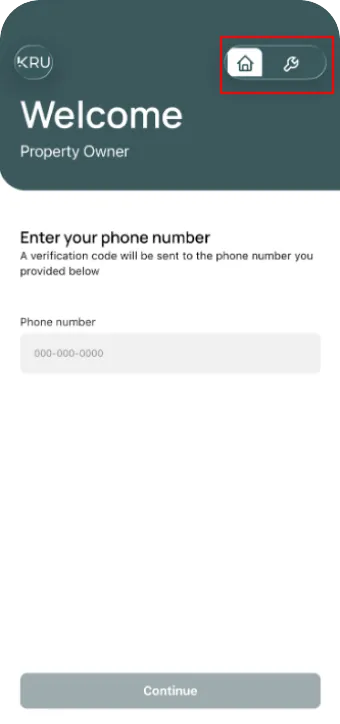
Select Property Owner
On the top right of the screen, you’ll see a home icon (for property managers and rental owners) and a wrench icon (for contractors). Select the home icon.
Step 3
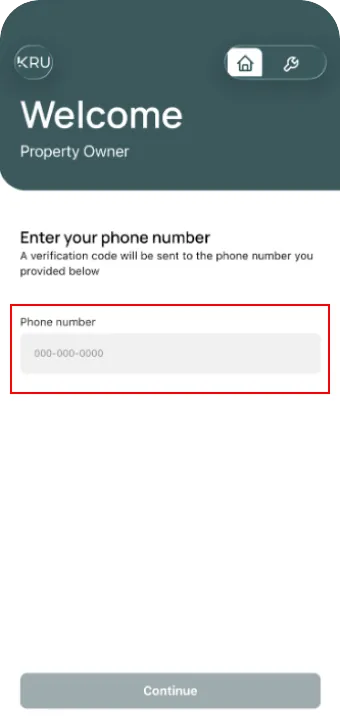
Enter your phone number
After you’ve downloaded the app, enter your phone number. You’ll receive a six-digit verification code. Enter that, and click Confirm.
Step 4
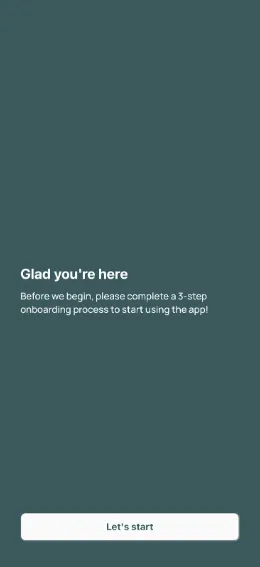
3-Step onboarding process
Next, you’ll be prompted to complete the 3-step onboarding process. Enter your email, then your first and last name, and agree to Kru’s terms of use.
You’re officially a Kru member!
Once you’ve completed your registration, you can begin using Kru!
Account access & login help
If you can’t access your account for any reason, reach out to us directly and we’ll help you get back in.
Dashboard & Profile Management
When you log into Kru, you’ll see four options on the bottom navigation bar:
Properties: All your properties in one place. Click any property to submit a new ticket, or use the Submit tab for a quick request.
Tickets: Every ticket you’ve submitted, with live status, contractor estimates, approvals, and full job history. Dispatch keeps each one moving in the background.
Submit: Use this tab to submit a new request.
Profile: Edit your profile, manage your subscription and units, contact support, and review our terms of use and privacy policy.
Submitting your first maintenance request.
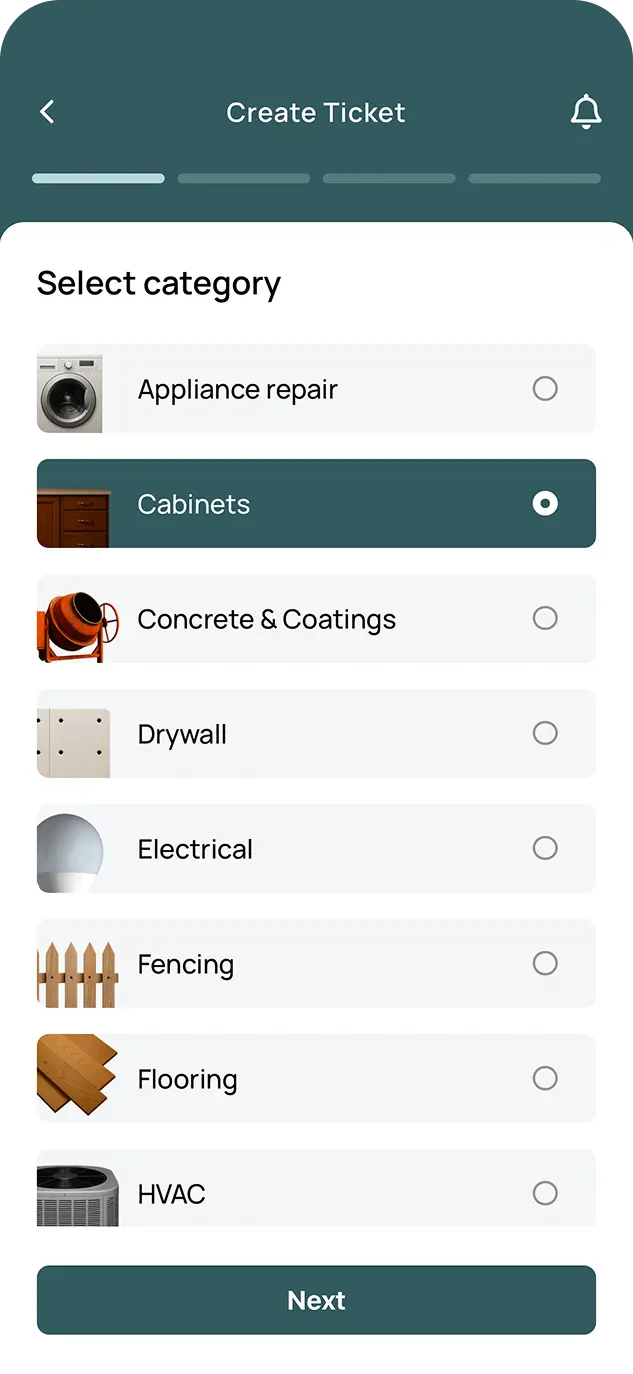
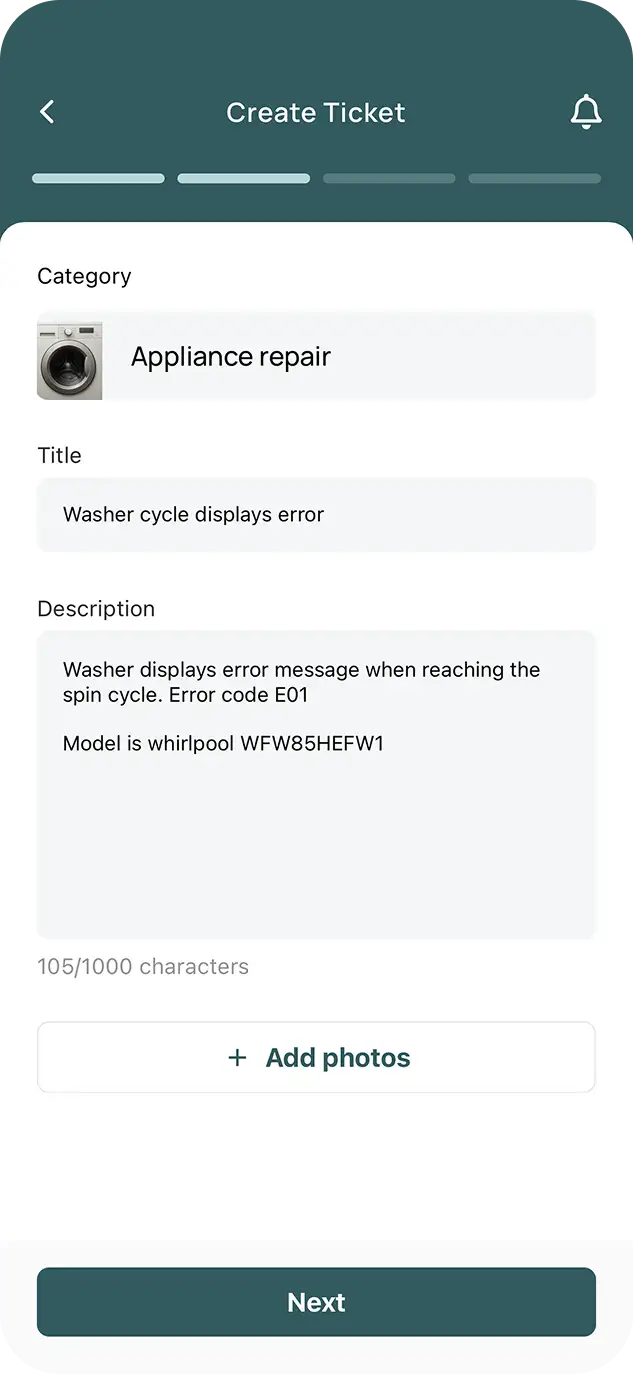
Start by taking a few photos of the repair so your contractor has full context. In your Kru app, open the Submit tab, fill in the details, attach your photos, and click Next.
Select the property and a few date windows that work for the visit, then submit. Dispatch routes the ticket to the right contractor from your network, collects an estimate, and brings it back to you for approval — all without you chasing anyone.
Want even faster turnaround? Toggle on AI Troubleshooting and Dispatch will text the tenant a few diagnostic questions first. Lots of “leaky faucets” turn out to be a loose handle — and you save the truck roll.
Subscription & billing
Homeowners use Kru for free. Multi-property owners have tiered subscription options!
Kru is a subscription platform — no per-ticket fees, no payment processing markup.
Solo Landlords (1–10 units): $39/month flat
Property Managers (11–500+ units): from $4.49 per unit per month
Commercial: $200–$500 per property per month, scoped per asset
Contractors: free, always
Every plan includes unlimited tickets, the PM dashboard, tenant onboarding, contractor coordination, in-app estimates and approvals, full job history, and Dispatch — the AI coordinator — at no extra cost.
How contractors get paid: You pay your contractors however you do today — e-transfer, cheque, ACH, accounting software, whatever already works. Kru coordinates the job; payment stays between you and your contractor.
See pricing page for full details and the founding partner offer.
Contractors
Start getting jobs, directly to your phone.
Get jobs directly to your phone — from the property managers and owners who already know your work.
Account setup
Step 1
Download the Kru App on your mobile device
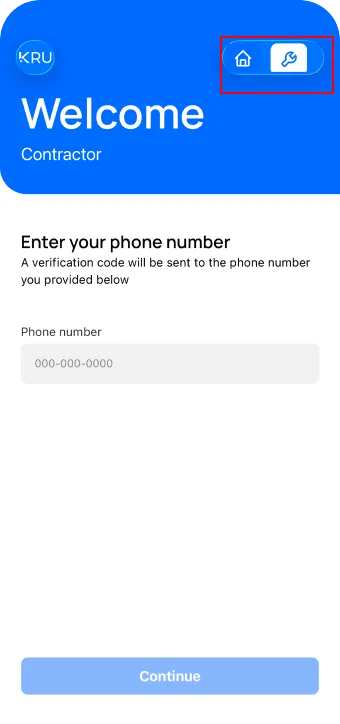
Step 2
Select Contractor
On the top right of the screen, you’ll see a home icon (for property owners) and a wrench icon (for contractors). Select the wrench icon.
Step 3
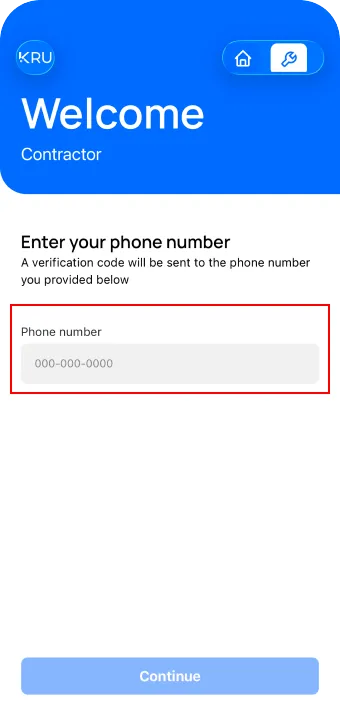
Enter your phone number
After you’ve downloaded the app, enter your phone number. You’ll receive a six-digit verification code. Enter that, and click Confirm.
Step 4
3-Step onboarding process
Next, you’ll be prompted to complete the 3-step onboarding process. Enter your email, then your first and last name, and agree to Kru’s terms of use.
Step 5
Set up your company
Set up your company
You’ll be prompted to “Create Company”. Enter your Business Number (the 9-digit number assigned by the Canada Revenue Agency), then your company info, trade(s), and company size.
Most contractors join Kru by invite from a property manager or rental owner who already works with you. Once you’re set up, you’ll see their tickets in your Feed — quote, communicate, and complete jobs all from the app.
You’re officially a Kru member!
Once you’ve completed your registration, you can begin using Kru!
Account access & login help
If you can’t access your account for any reason, reach out to us directly and we’ll help you get back in.
Dashboard & Profile Management
When you log into Kru, you’ll see three options on the bottom navigation bar:
Feed: All your jobs and incoming requests. Click any request to send a quote, message the property manager, and track status.
Tickets: Every active and past job, with status, messages, and full history.
Profile: Use this area to edit your profile, contact us, review our terms of use and privacy policy, and delete your account
Receiving your first maintenance request.
When a property manager or rental owner from your network submits a ticket in your trade, it shows up in your Feed. You’ll get a push notification too — no need to keep refreshing.
Open the ticket, review the photos and details, send your quote, and the PM approves it right in the app. Once it’s approved, you’re scheduled and good to go.
Getting paid.
Kru is free for contractors — no platform fee, no percentage taken.
Payment happens directly between you and the property manager or rental owner, the same way you already get paid today: e-transfer, cheque, ACH, invoice through your accounting software — whatever works for both sides. Kru handles the coordination, scheduling, and approval; the payment stays between you and your customer.
Frequently asked questions.
How do I see the status update for my requests?
You’ll be notified when a contractor responds to your ticket directly, but if you want to keep an eye on the status of the ticket for any other updates, these will be in the Tickets tab on the app.
How do I modify or cancel a job?
Life happens! If you need to modify or cancel a job, simply go to the Tickets tab in your Kru app. From here, you’ll be able to modify the job to request a new date or cancel it entirely.
What if I need to communicate with the contractor/property owner?
Once a quote is approved, you can message right inside the Kru app. Open the ticket from the Tickets tab and chat directly — every message stays attached to the job for full history.
What do I do if I’m not satisfied with the job when it’s completed?
Because you bring your own contractors onto Kru, the working relationship stays between you and them — just like it does today, off-platform. If something goes wrong, you handle it the way you normally would. Kru’s role is to make sure everything is documented: every message, photo, estimate, and approval is captured in the ticket, so you have a clean record if you need it.
As a contractor, what happens if a client refuses to pay?
Payment runs directly between you and your customer — Kru doesn’t process payments. If a customer doesn’t pay, handle collections the way you normally would. The full ticket history in Kru (messages, approved estimate, completion confirmation) is yours to use as documentation.
What happens if the scope of the job is higher than originally thought/the job costs more than originally quoted?
If the scope changes mid-job and the cost will exceed the original estimate, send an updated estimate in the Kru app and get approval before doing the additional work. Once approved, it’s logged on the ticket. If work is completed without prior approval and the customer disputes the new cost, collections are between you and the customer — Kru can’t recover funds.

Didn’t find an answer to your question?
Reach out to us through the live chat feature, Contact Us form, through email, or by phoning. Our support team is eager to help you as quickly as possible.